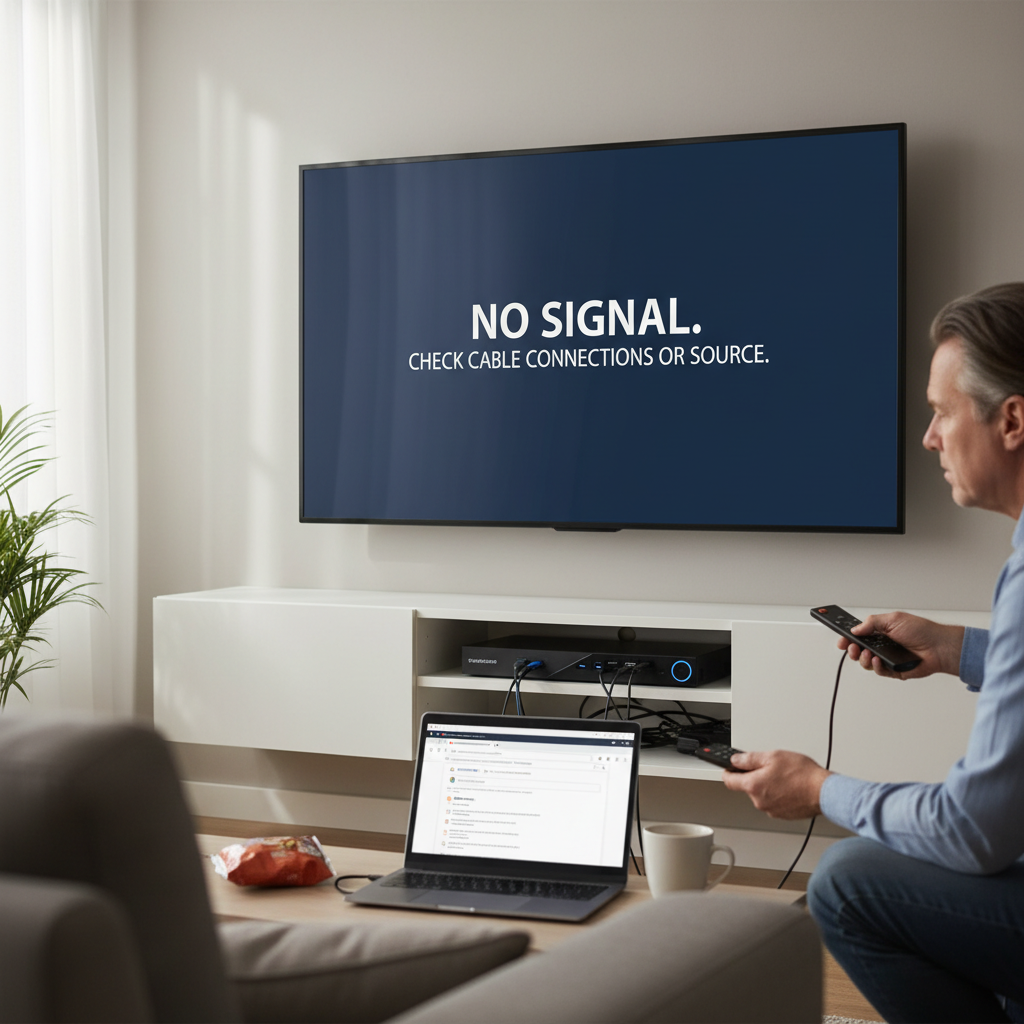
Few things are as frustrating as settling down for your favorite show, only to be met with the dreaded “No Signal” message on your TV screen. This common issue with digital boxes or receivers can quickly turn an evening of entertainment into a head-scratching puzzle. Whether you rely on terrestrial, satellite, or cable, a blank screen signals a break in communication between your digital receiver and your television, or between your receiver and its signal source.
As an experienced technician in digital receiving equipment, I’ve seen countless “no signal” scenarios. The good news is that most of these problems are easily fixable with a systematic approach. This comprehensive guide will walk you through a step-by-step troubleshooting process, helping you diagnose the root cause and restore your picture in no time, saving you the hassle and potential cost of a professional service call.
Understanding the “No Signal” Message
When your digital box displays “No Signal,” it means your television isn’t receiving any data from the connected device. This isn’t necessarily a fault with your TV, but rather an indication that the input selected on your television isn’t receiving an active video signal from your digital box. The problem could stem from various points: the connection between the box and the TV, the box itself, or the signal coming into the box from its source (like an antenna or satellite dish). Identifying where this break occurs is key to finding the solution.
It’s important to distinguish between your TV’s “No Signal” message and any error messages displayed directly by your digital box. If your digital box shows an error (e.g., “Weak Signal,” “Channel Not Available”), it indicates the box is powered and communicating with the TV, but struggling with its incoming signal. If your TV shows “No Signal” and your digital box appears off or unresponsive, the issue is likely earlier in the chain.
Initial Checks: The Quick Fixes
Before diving into more complex diagnostics, start with these fundamental checks. Often, the solution is surprisingly simple.
Verify TV Input Source
This is the most common oversight and the first place to check. Your TV has multiple input ports (HDMI 1, HDMI 2, AV, Component, etc.), and it needs to be set to the correct one where your digital box is connected.
- Action: Grab your TV remote and repeatedly press the “Input,” “Source,” or “TV/Video” button. Cycle through all available inputs until you see a picture or an interface from your digital box.
- Tip: If you’re unsure which port your digital box is plugged into, physically check the back of your TV and note the port number (e.g., HDMI 1). Then, select that specific input on your TV.
|
Our Picks for the Best Digital receiver in 2026
As an Amazon Associate I earn from qualifying purchases.
|
||
| Num | Product | Action |
|---|---|---|
| 1 | Daakro AK45 Stereo Audio Amplifier,300W Home 2 Channel Wireless Bluetooth 5.0 Power Amplifier System, Home Amplifiers FM Radio, USB, SD Card, with Remote Control Home Theater Audio Stereo System |

|
| 2 | Donner Stereo Audio Amplifier, 600W Peak 2 Channel Receiver with Bluetooth 5.3, Phono, Optical, Coaxial, USB, FM, 2 Mic-in, Aux, RCA Input for Home, Karaoke, Theater Speakers, MAMP2 |
|
| 3 | Denon AVR-X1700H 7.2 Channel AV Receiver - 80W/Channel, Advanced 8K HDMI Video w/eARC, Dolby Atmos, DTS:X, Built-in HEOS, Amazon Alexa Voice Control |
|
| 4 | Sony STRDH190 2-ch Home Stereo Receiver with Phono Inputs & Bluetooth Black |
|
| 5 | Denon AVR-S570BT AV Receiver 5.2 Channel 8K Ultra HD Audio & Video, Stereo Receivers, Denon AVR Wireless Streaming Bluetooth, (4) 8K HDMI Inputs, eARC, HD Setup Assistant |
|
| 6 | Pyle Home Stereo Receiver with Bluetooth - 4 Channel Amplifier, 800 Watt Max, USB-A Input w MP3 Player, Easy Karaoke Setup with Mic Vol, Reverb and Delay, RCA in/Out, SD Card, FM Radio - PDA77BU |
|
| 7 | Digital TV Converter Box, ATSC Tv Tuner - ZJBOX for Analog HDTV Live 1080P with Recording&Playback,HDMI Output, Timer Setting Tuner Function Digital Channel Free |
|
| 8 | Pyle 200W Stereo Power Amplifier with Bluetooth - Dual Channel Audio Receiver - LED Display - RCA - USB - SD - MIC IN - FM Radio - AUX Input - Perfect for Home & Computer Audio - PDA29BU.5 |
|
| 9 | Pyle 4-Channel Audio Amplifier with Bluetooth - Home Stereo Receiver w/ 500W Max Power - Commercial or Karaoke - Dual Mic Input with Echo, Vol, Talk-Over - AUX In - Sub Out - USB-A MP3 Player, AM/FM |
|
| 10 | YAMAHA R-S202BL Stereo Receiver |
|
Check All Cable Connections
Loose or improperly connected cables are frequent culprits behind signal loss. A secure physical connection is paramount for signal integrity.
- Action: Carefully inspect all cables connecting your digital box to your TV and to its power source.
- HDMI Cable (Box to TV): Ensure both ends are firmly plugged into the digital box’s “HDMI Out” and your TV’s “HDMI In” port. Give them a gentle wiggle to ensure they’re snug.
- Coaxial Cable (Source to Box): If you have a cable box or satellite receiver, check the coaxial cable connecting it to the wall outlet or satellite dish. For terrestrial digital receivers, ensure the antenna cable is securely connected.
- Power Cable: Verify the digital box’s power cable is securely plugged into the back of the box and into a working wall outlet or surge protector.
Power Cycle Your Devices
A simple reboot can often resolve temporary glitches by clearing the device’s memory and resetting its internal processes.
- Action:
- Turn off your digital box and your TV.
- Unplug both devices from their power outlets.
- Wait for at least 30 seconds (some recommend a full minute).
- Plug the digital box back in first, then turn it on and wait for it to fully boot up (this can take a few minutes).
- Finally, plug in your TV and turn it on.
- Note: If your digital box is plugged into a power strip or surge protector, try plugging it directly into a wall outlet to rule out issues with the strip.
Ensure Digital Box is On, Not Standby
Sometimes, the simplest explanation is the right one. Your digital box might just be in standby mode or completely powered off.
- Action: Check the indicator lights on your digital box. If they’re off or show a standby status, use your digital box remote to power it on. It might take a moment for the system to boot up and display a picture.
Troubleshooting Cable and Connectivity Issues
If the basic checks didn’t restore your signal, the problem might lie specifically with your cables or their setup.
Inspect Cables for Damage
Cables can deteriorate over time, especially if bent sharply, crimped, or exposed to the elements. Physical damage can severely impact signal transmission.
- Action: Visually inspect all cables (HDMI, coaxial) for any signs of wear and tear, such as cuts, frayed wires, or bent connectors.
- Solution: If you find any damage, replace the cable. High-quality, shielded cables are always recommended to minimize interference and ensure a robust connection.
Test Different HDMI Ports/Cables
A faulty HDMI cable or a damaged HDMI port on either your TV or your digital box can cause a “No Signal” error.
- Action:
- If you have a spare HDMI cable, try swapping it with the current one.
- Try connecting your digital box to a different HDMI input port on your TV (and remember to select the corresponding input on your TV).
- If possible, test your digital box with another TV, or another device (like a DVD player) with your current TV’s HDMI ports to isolate the problem.
Remove Signal Splitters
While useful for distributing a signal to multiple devices, signal splitters can weaken the signal strength if they’re unpowered or of poor quality.
- Action: If your coaxial or antenna cable runs through a splitter before reaching your digital box, try connecting the cable directly to the box, bypassing the splitter entirely.
- Consideration: If bypassing the splitter restores your signal, you might need a powered splitter or a higher-quality unpowered one, or even a signal amplifier if you truly need to split the signal.
Addressing Digital Box/Receiver Problems
Sometimes, the digital box itself can be the source of the issue, whether due to a software glitch or a specific setting.
Perform a Full System Reset (Factory Reset)
A factory reset should be considered a last resort, as it will erase all your custom settings, saved channels, and potentially recorded content. However, it can resolve persistent software-related issues.
- Action: Refer to your digital box’s user manual for instructions on how to perform a factory reset. This usually involves navigating through the settings menu.
Check for Software Updates
Outdated firmware on your digital box or even your TV can sometimes lead to compatibility issues or bugs that affect signal processing.
- Action:
- Access the settings menu on your digital box (if you can get a picture) and your TV.
- Look for options related to “Software Update,” “Firmware Update,” or “System Update.”
- If updates are available, download and install them. Ensure your internet connection is stable during this process.
Specific Satellite Receiver Settings
For satellite digital receivers, incorrect settings for the Low Noise Block (LNB) converter can prevent signal reception.
- Action: In your satellite receiver’s setup menu, verify that:
- LNB Power: Is switched ON.
- LNB Frequency: Is correctly set to match the type of LNB you are using. This frequency is crucial for the receiver to correctly down-convert satellite signals. Check the label on your LNB for its local oscillating frequency.
Optimizing Your Signal Source (Antenna/Dish Specific)
If your digital box gets its signal from an external antenna (for terrestrial TV) or a satellite dish, problems with these components are a common cause of “no signal” messages.
Antenna/Dish Alignment
Proper alignment is critical for receiving a strong, clear signal. Even a slight shift can lead to significant signal degradation or loss.
- Action for Antennas:
- For indoor antennas, try repositioning it. Even a few inches can make a difference. Placing it near a window or higher up might help.
- For outdoor antennas, ensure it’s securely mounted and pointed directly towards the nearest broadcast towers. Online tools can help you find the correct direction for your location.
- Action for Satellite Dishes:
- Satellite dishes require very precise alignment to receive signals from geostationary satellites. A slight nudge from wind or impact can knock it out of alignment.
- Tip: Some digital boxes or TVs have a built-in signal meter in their settings menu. Use this to fine-tune your antenna or dish alignment for the highest signal strength and quality.
Obstructions
Anything blocking the line of sight between your antenna/dish and the signal source can cause problems.
- Action:
- Trees and Foliage: Overgrown trees can obstruct signals, especially when wet. Consider trimming branches or repositioning your antenna/dish.
- Buildings and Structures: New construction or even existing buildings can block signals.
- Weather Accumulation: Snow or ice on a satellite dish can severely impede signal reception. Safely clear any accumulation.
Antenna Type and Condition
Using the wrong type of antenna for your location or a damaged antenna can result in a “no signal” message.
- Action:
- Antenna Type: Ensure your antenna is designed for the frequency bands (VHF, UHF) broadcast in your area.
- Damage: Inspect the antenna for physical damage, corrosion, or loose elements.
- Antenna Amplifier: If you use an amplified antenna, ensure its power supply is functioning correctly.
Minimizing Interference and Environmental Factors
External elements beyond your immediate control can also interrupt your digital signal.
Electronic Interference
Household electronics can emit electromagnetic interference that disrupts your digital TV signal.
- Action: Keep devices like microwaves, Wi-Fi routers, cordless phones, and even dimmer switches away from your digital box and antenna cables. Test if turning off nearby electronics temporarily resolves the signal issue.
Weather Impact
Severe weather, such as heavy rain, snow, or strong winds, can temporarily attenuate or block digital signals. Satellite signals are particularly susceptible to “rain fade.”
- Understanding: While you can’t control the weather, understanding its impact can help you anticipate occasional signal disruptions. Often, the signal will return once the weather clears.
Service Outages
Sometimes, the “no signal” issue isn’t on your end but with your service provider.
- Action: Check your service provider’s website or social media for information on local outages. You can also call their customer support line.
When to Seek Professional Help
If you’ve systematically worked through all the troubleshooting steps above and still face a “no signal” problem, it might be time to call in a professional.
- Complex Alignment: Satellite dish alignment, in particular, requires specialized tools for precise adjustment.
- Suspected Hardware Fault: If you’ve ruled out all external factors, there might be an internal hardware fault with your digital box or TV.
- Difficult Installations: For roof-mounted antennas or complex wiring, professional installation ensures safety and optimal performance.
Conclusion
Encountering a “No Signal” message on your digital box can be incredibly frustrating, but it’s rarely a problem without a solution. By methodically checking your connections, power cycling your devices, inspecting your cables, and addressing potential issues with your signal source, you can resolve most problems quickly. Remember that clear, unobstructed signal paths and proper equipment settings are crucial for uninterrupted viewing. Don’t let a blank screen defeat you; empower yourself with these troubleshooting steps to get back to enjoying your favorite content.
What was the most surprising fix you ever discovered for a “no signal” issue?
Frequently Asked Questions
Why does my digital box say “no signal” after a storm?
After a storm, a “no signal” message is often due to temporary weather-related signal attenuation (rain fade for satellite) or physical issues like a misaligned antenna/dish, damaged cables from strong winds, or even power fluctuations affecting your equipment. Always check for physical damage and perform a power cycle first.
Can a faulty HDMI cable cause “no signal”?
Yes, absolutely. A faulty, damaged, or poorly connected HDMI cable is one of the most common reasons for a “no signal” error. The cable transmits both video and audio, and any interruption can lead to the TV not detecting an input from the digital box. Try swapping the cable or using a different HDMI port.
How often should I power cycle my digital box?
You don’t need to power cycle your digital box regularly unless you experience issues. However, if you encounter intermittent problems, freezing, or a “no signal” message, a power cycle (unplugging for 30-60 seconds) is often the first and most effective troubleshooting step to clear temporary software glitches.
What’s the difference between “no signal” and “no channels found”?
“No signal” (from your TV) means your TV isn’t receiving any input from the connected device. “No channels found” (from your digital box) means the digital box is powered on and communicating with your TV, but it’s unable to detect any broadcast channels from its incoming signal source, often due to antenna issues, weak signal, or incorrect scanning settings.