There’s nothing more frustrating than settling in to watch your favorite show, only to be met with a blocky, distorted, or freezing picture. Pixelated channels are a common annoyance for many TV viewers, disrupting the immersive experience you deserve. But before you panic or call for costly professional help, understand that many causes of pixelation are simple to diagnose and quick to fix. With over a decade of hands-on experience in digital receiver technology, I’m here to guide you through practical troubleshooting steps to restore your crystal-clear viewing. Let’s dive in and get your channels back to perfection without delay.
Understanding Digital Receiver Pixelation
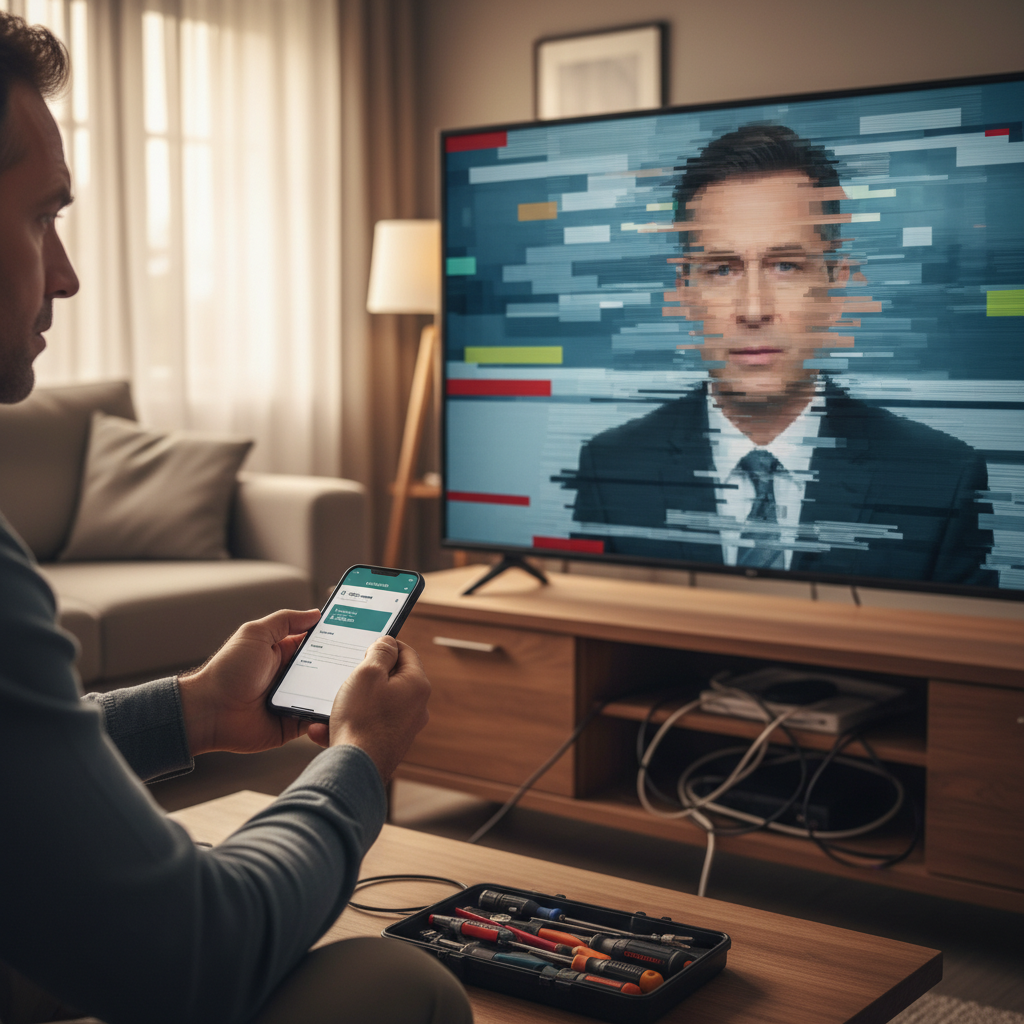
Pixelation occurs when your television or digital receiver struggles to process the incoming digital signal correctly. Instead of a smooth, continuous image, you see a mosaic of colored squares, often accompanied by audio dropouts or freezing. This isn’t just a minor visual glitch; it’s a clear indicator that something is interfering with the integrity of the signal being transmitted to your display.
The primary culprit behind pixelation is almost always a weak or interrupted signal. Unlike old analog TV, which would simply show static with a poor signal, digital broadcasting either works perfectly or struggles, leading to pixelation. This signal degradation can stem from various sources, including physical connections, your antenna setup, internet stability for streaming, or even interference from other electronics. Recognizing these underlying causes is the first step toward a quick resolution.
Quick Fixes for Pixelated Channels: A Step-by-Step Guide
Addressing pixelation doesn’t always require expert knowledge or expensive equipment. Many common issues can be resolved with a methodical approach to troubleshooting. Here’s how you can tackle pixelated channels quickly and effectively.
Check All Your Connections
Often, the simplest solution is the most overlooked. Loose or damaged cables are a frequent cause of poor signal quality leading to pixelation.
- Coaxial Cables: These are the primary carriers of cable or antenna signals. Ensure all coaxial cables connecting your wall outlet, digital receiver, and TV are screwed in tightly at every point. Inspect the cables for any visible damage, kinks, or frayed ends, especially if they’ve been moved recently or are in high-traffic areas.
- HDMI Cables: For connections between your receiver and TV, or streaming devices, a faulty HDMI cable can also cause signal disruptions. Unplug and re-plug both ends of the HDMI cable firmly. If the issue persists, try swapping it with a known good HDMI cable from another device to rule out a defective cable.
- Power Cables: While less common for pixelation, ensuring all devices (TV, receiver, set-top box, modem/router) have secure power connections can prevent intermittent power interruptions that might affect signal processing.
|
Our Picks for the Best Digital receiver in 2026
As an Amazon Associate I earn from qualifying purchases.
|
||
| Num | Product | Action |
|---|---|---|
| 1 | Pyle Home Stereo Receiver with Bluetooth - 4 Channel Amplifier, 800 Watt Max, USB-A Input w MP3 Player, Easy Karaoke Setup with Mic Vol, Reverb and Delay, RCA in/Out, SD Card, FM Radio - PDA77BU |

|
| 2 | Pyle 4-Channel Audio Amplifier with Bluetooth - Home Stereo Receiver w/ 500W Max Power - Commercial or Karaoke - Dual Mic Input with Echo, Vol, Talk-Over - AUX In - Sub Out - USB-A MP3 Player, AM/FM |
|
| 3 | YAMAHA R-S202BL Stereo Receiver |
|
| 4 | Digital TV Converter Box, ATSC Tv Tuner - ZJBOX for Analog HDTV Live 1080P with Recording&Playback,HDMI Output, Timer Setting Tuner Function Digital Channel Free |
|
| 5 | Sony STRDH190 2-ch Home Stereo Receiver with Phono Inputs & Bluetooth Black |
|
| 6 | Daakro AK45 Stereo Audio Amplifier,300W Home 2 Channel Wireless Bluetooth 5.0 Power Amplifier System, Home Amplifiers FM Radio, USB, SD Card, with Remote Control Home Theater Audio Stereo System |
|
| 7 | Denon AVR-S570BT AV Receiver 5.2 Channel 8K Ultra HD Audio & Video, Stereo Receivers, Denon AVR Wireless Streaming Bluetooth, (4) 8K HDMI Inputs, eARC, HD Setup Assistant |
|
| 8 | Donner Stereo Audio Amplifier, 600W Peak 2 Channel Receiver with Bluetooth 5.3, Phono, Optical, Coaxial, USB, FM, 2 Mic-in, Aux, RCA Input for Home, Karaoke, Theater Speakers, MAMP2 |
|
| 9 | Pyle 200W Stereo Power Amplifier with Bluetooth - Dual Channel Audio Receiver - LED Display - RCA - USB - SD - MIC IN - FM Radio - AUX Input - Perfect for Home & Computer Audio - PDA29BU.5 |
|
| 10 | Denon AVR-X1700H 7.2 Channel AV Receiver - 80W/Channel, Advanced 8K HDMI Video w/eARC, Dolby Atmos, DTS:X, Built-in HEOS, Amazon Alexa Voice Control |
|
Power Cycle Your Devices
A quick reboot can often clear temporary glitches and refresh your system’s connection. This is similar to restarting a computer when it acts up.
- Turn Off and Unplug: Completely turn off your TV, digital receiver, set-top box, and any associated internet modem or router.
- Wait: Disconnect them from their power outlets for at least 60 seconds. This allows internal capacitors to discharge fully and resets the device’s network connections.
- Plug Back In and Restart: Plug everything back in, starting with your modem/router (if applicable), then your receiver/set-top box, and finally your TV. Allow each device ample time to fully boot up before moving to the next.
Rescan for Channels (Auto-tune)
Over-the-air (OTA) broadcast channels can sometimes shift frequencies or be affected by local changes, causing your receiver to struggle with tuning. A channel rescan helps your TV or receiver find and store the most current and strongest signals available.
- Access Your TV/Receiver Menu: Using your remote control, navigate to the main menu, often labeled “Settings,” “Setup,” or “Channel.”
- Find Channel Scan Option: Look for options like “Auto Program,” “Channel Scan,” “Auto-tune,” or “Search for Channels.”
- Initiate Scan: Select the option to begin the scan. This process can take several minutes. Once complete, your TV will have an updated list of available channels, potentially resolving pixelation issues on previously problematic channels.
Optimize Your Antenna (Over-the-Air Broadcasts)
If you rely on an outdoor or indoor antenna for free-to-air channels, its placement and condition are critical for signal reception.
- Repositioning: Even a slight adjustment can significantly impact signal strength. For indoor antennas, try moving it to a window or a higher location. For outdoor antennas, ensure it’s pointed directly towards the broadcast towers. Online tools can help you find the optimal direction.
- Check for Obstructions: Buildings, trees, or even severe weather can impede your antenna’s line of sight to the broadcast tower. Clear any immediate obstructions if possible.
- Consider a Signal Amplifier: If you live far from broadcast towers or distribute the signal to multiple TVs, a signal amplifier (booster) can help strengthen a weak signal before it reaches your receiver. However, be aware that an amplifier only boosts an existing signal; it can’t create one. If your signal is too weak, it might amplify noise along with the signal, which could worsen pixelation.
- Upgrade Older Antennas: Over time, antennas can degrade due to weather exposure. If your antenna is old, upgrading to a modern, high-gain digital antenna might be necessary to capture stronger, clearer signals. “A well-maintained and properly aligned antenna is the backbone of clear digital reception,” advises industry veteran John Smith, an expert in broadcast technology.
Evaluate Your Internet and Streaming
For those watching content through streaming apps or services, pixelation often points to an issue with your internet connection rather than a broadcast signal.
- Wi-Fi Signal Strength: A weak Wi-Fi signal can cause streaming content to buffer, freeze, or pixelate as the app struggles to download data quickly enough. Move your streaming device closer to your router or consider a Wi-Fi extender.
- Consider a Wired Connection: If possible, connect your smart TV or streaming device directly to your router using an Ethernet cable. A wired connection is generally more stable and faster than Wi-Fi, often eliminating pixelation caused by wireless interference or poor signal.
- App and TV Firmware Updates: Ensure all your streaming apps and your smart TV’s operating system firmware are up to date. Manufacturers often release updates that improve performance and resolve bugs that could affect streaming quality.
- Content Resolution: Sometimes, the issue isn’t your connection but the source content. If you’re watching older content or a service offering lower resolution streams, pixelation might be inherent to the content itself or a result of bandwidth limitations from the service provider.
Minimize Signal Interference
Electronic devices, and even environmental factors, can interfere with your TV signal, leading to pixelation.
- Move Electronics: Devices like cordless phones, microwaves, baby monitors, and even fluorescent lights can emit electromagnetic interference. Try moving these devices away from your TV, receiver, and antenna cables.
- Weather Impact: Heavy rain, snow, or severe storms can temporarily degrade satellite or over-the-air signals. While you can’t control the weather, understanding its impact can help you diagnose whether the issue is temporary or systemic. Pixelation during bad weather is often normal and resolves once conditions improve.
Bypass Signal Splitters
If your antenna or cable signal is split to feed multiple televisions, each split can weaken the signal.
- Direct Connection Test: To troubleshoot, try connecting your digital receiver directly to the incoming signal line, bypassing any splitters. If the pixelation resolves, the splitter might be old, faulty, or simply reducing the signal strength too much. You may need a higher-quality splitter or a signal amplifier with multiple outputs.
When to Call a Professional
While many pixelation issues are solvable with the steps above, some problems run deeper and require expert intervention.
- Persistent Issues: If you’ve tried all the troubleshooting steps and pixelation persists across multiple channels or devices, it’s a sign that the problem might be more complex.
- Suspected Internal Hardware Faults: A faulty tuner within your TV or receiver, or a failing component in your set-top box, could be the culprit. These issues typically require professional diagnosis and repair.
- Complex Antenna or Cabling Problems: If your antenna system involves complex routing, significant cable lengths, or an outdoor installation, a professional technician can accurately diagnose signal strength, cable integrity (even within walls), and optimize your entire setup. They have specialized tools to measure signal quality and identify precise points of failure.
Conclusion
Pixelated channels don’t have to ruin your viewing experience. By systematically working through common troubleshooting steps—checking connections, power cycling devices, rescanning channels, and optimizing your antenna or internet setup—you can quickly identify and resolve many issues yourself. Remember, a clear picture often comes down to a strong, uninterrupted signal. Don’t let those annoying squares diminish your enjoyment; take charge of your digital reception and get back to enjoying vibrant, clear television. What steps will you try first to clear up your pixelated channels?
Frequently Asked Questions
Why are only some channels pixelated?
If only specific channels are pixelated, it often indicates a localized signal issue. This could be due to those channels broadcasting at a weaker frequency or your antenna/receiver struggling to tune into those particular frequencies effectively. Try rescanning channels, adjusting your antenna, or checking for interference on those specific channels’ frequencies.
Does weather affect digital TV reception?
Yes, severe weather conditions like heavy rain, snow, or strong winds can significantly affect digital TV reception, leading to pixelation or signal loss. This is because moisture and atmospheric disturbances can interfere with the broadcast waves. Typically, reception should return to normal once the weather improves.
Can an old TV cause pixelation?
While an older TV itself might not directly “cause” pixelation, its internal tuner or processing capabilities might not be as robust as newer models. If connected to an external digital receiver, the TV’s display panel can only show the quality of the signal it receives. However, a faulty or outdated internal tuner in a smart TV could struggle with signal processing, leading to pixelation.
What’s the difference between pixelation and freezing?
Pixelation manifests as blocky, distorted images due to incomplete or corrupted digital signal data. Freezing, on the other hand, means the image completely stops and holds still for a period. Both are symptoms of signal problems, but freezing often indicates a more severe or complete loss of signal for a brief moment, while pixelation is a partial corruption.