In today’s diverse technological landscape, connecting your computer to a monitor isn’t always as simple as plugging in a single cable. With a myriad of ports like HDMI, DisplayPort, USB-C, and even legacy VGA, finding the right connection can feel like solving a complex puzzle. Whether you’re upgrading your setup, connecting an older device to a new display, or expanding to a multi-monitor workstation, understanding monitor converters is crucial. These small yet powerful devices are the unsung heroes that bridge the compatibility gap, ensuring your visuals are sharp, smooth, and exactly where you need them. This comprehensive guide will demystify the world of computer monitor converters, helping you make informed decisions and achieve seamless connectivity.
What Are Converters for Computer Monitors?
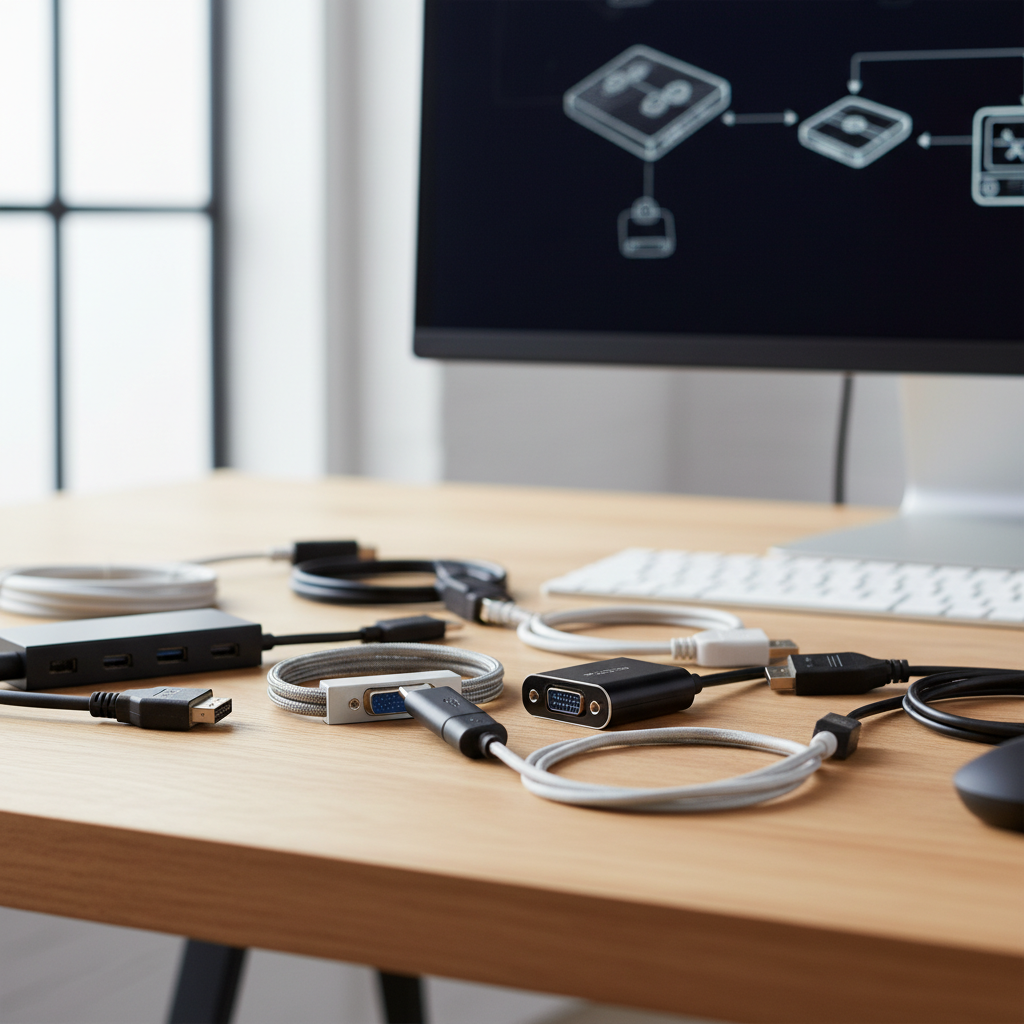
Converters for computer monitors, often referred to as video adapters, are essential tools that enable communication between devices with different video output and input ports. In essence, they translate the video signal from one format to another, allowing you to connect, for example, a laptop with only a USB-C port to a monitor that only has HDMI. Without these converters, many modern and legacy devices would simply be incompatible, leading to frustrating black screens and unused hardware.
The necessity for these converters stems from several common scenarios. You might have an older monitor with a VGA or DVI input that you want to connect to a new graphics card offering only HDMI or DisplayPort. Conversely, a sleek new laptop might only feature USB-C ports, requiring a converter to connect to an existing HDMI or DisplayPort monitor. They are also indispensable for multi-monitor setups, allowing you to utilize every available display for enhanced productivity or an immersive gaming experience.
Common types of converters facilitate popular transitions, such as:
- HDMI to DisplayPort: Connecting a device with HDMI output (like a gaming console or an older PC) to a DisplayPort-only monitor.
- DisplayPort to HDMI: Connecting a DisplayPort source (many modern graphics cards) to an HDMI-only display (like a TV or older monitor).
- USB to HDMI/DisplayPort: Crucial for ultra-thin laptops that often lack dedicated video outputs, allowing you to extend or mirror your display via a USB-A, USB-C, or Thunderbolt port.
- VGA Converters: For bridging the gap between analog VGA ports (found on many older monitors and projectors) and modern digital outputs like HDMI or DisplayPort.
Understanding these different types and their functions is the first step in unlocking your display’s full potential.
Understanding Active vs. Passive Converters
One of the most critical distinctions in the world of monitor converters is between “active” and “passive” adapters. This difference isn’t just about price; it directly impacts functionality, compatibility, and performance, especially for higher resolutions or specific conversion types.
Passive Adapters: These are simpler, less expensive devices that primarily re-route existing signals. A passive converter only works if the source device (e.g., your computer’s graphics card) is designed to output a “dual-mode” signal. For instance, many DisplayPort outputs support “DisplayPort++” (DP++), which means they can natively output an HDMI or DVI signal with a simple passive adapter. If your source port supports this dual-mode capability, a passive adapter acts merely as a physical connector change without altering the video signal itself. They are typically smaller, don’t require external power, and are suitable for straightforward digital-to-digital conversions where the source supports the alternative signal format.
Active Adapters: In contrast, active adapters contain built-in chips that actively convert the video signal from one format to another. This internal processing means they can translate signals that are not natively compatible, such as converting a pure HDMI signal to DisplayPort, or any digital signal (HDMI, DisplayPort, DVI-D) to an analog VGA signal. Because they perform complex signal conversion, active adapters are generally larger, more expensive, and often require external power (usually via a USB cable) to operate.
You’ll almost always need an active adapter for:
- HDMI Output to DisplayPort Input: This is a common requirement because HDMI does not natively support DisplayPort’s clocking mechanism. An active adapter adds the necessary clock to the video format.
- Any Digital to Analog Conversion: For example, HDMI or DisplayPort to VGA. VGA is an analog signal, while HDMI and DisplayPort are digital, requiring active conversion.
- Multi-Monitor Setups: Especially when using DisplayPort’s Multi-Stream Transport (MST) to daisy-chain monitors, active adapters ensure stable outputs.
- High Resolutions and Refresh Rates: Active adapters are often necessary to maintain signal integrity for 4K and higher resolutions, or high refresh rates (120Hz+) where signal degradation can be an issue with passive solutions.
Choosing the correct type – active or passive – is paramount for successful connectivity and optimal display performance. If unsure, an active adapter is generally the safer choice, especially for demanding applications or if your source device lacks dual-mode support.
Key Factors to Consider When Choosing a Monitor Converter
Selecting the right converter isn’t a one-size-fits-all situation. Several critical factors come into play, influencing compatibility, performance, and your overall visual experience.
Source and Destination Ports
|
Our Picks for the Best Digital receiver in 2026
As an Amazon Associate I earn from qualifying purchases.
|
||
| Num | Product | Action |
|---|---|---|
| 1 | Denon AVR-X1700H 7.2 Channel AV Receiver - 80W/Channel, Advanced 8K HDMI Video w/eARC, Dolby Atmos, DTS:X, Built-in HEOS, Amazon Alexa Voice Control |

|
| 2 | Pyle 4-Channel Audio Amplifier with Bluetooth - Home Stereo Receiver w/ 500W Max Power - Commercial or Karaoke - Dual Mic Input with Echo, Vol, Talk-Over - AUX In - Sub Out - USB-A MP3 Player, AM/FM |
|
| 3 | Digital TV Converter Box, ATSC Tv Tuner - ZJBOX for Analog HDTV Live 1080P with Recording&Playback,HDMI Output, Timer Setting Tuner Function Digital Channel Free |
|
| 4 | Pyle 200W Stereo Power Amplifier with Bluetooth - Dual Channel Audio Receiver - LED Display - RCA - USB - SD - MIC IN - FM Radio - AUX Input - Perfect for Home & Computer Audio - PDA29BU.5 |
|
| 5 | Sony STRDH190 2-ch Home Stereo Receiver with Phono Inputs & Bluetooth Black |
|
| 6 | Pyle Home Stereo Receiver with Bluetooth - 4 Channel Amplifier, 800 Watt Max, USB-A Input w MP3 Player, Easy Karaoke Setup with Mic Vol, Reverb and Delay, RCA in/Out, SD Card, FM Radio - PDA77BU |
|
| 7 | Donner Stereo Audio Amplifier, 600W Peak 2 Channel Receiver with Bluetooth 5.3, Phono, Optical, Coaxial, USB, FM, 2 Mic-in, Aux, RCA Input for Home, Karaoke, Theater Speakers, MAMP2 |
|
| 8 | Daakro AK45 Stereo Audio Amplifier,300W Home 2 Channel Wireless Bluetooth 5.0 Power Amplifier System, Home Amplifiers FM Radio, USB, SD Card, with Remote Control Home Theater Audio Stereo System |
|
| 9 | YAMAHA R-S202BL Stereo Receiver |
|
| 10 | Denon AVR-S570BT AV Receiver 5.2 Channel 8K Ultra HD Audio & Video, Stereo Receivers, Denon AVR Wireless Streaming Bluetooth, (4) 8K HDMI Inputs, eARC, HD Setup Assistant |
|
The most fundamental step is identifying the exact video output port on your source device (e.g., laptop, desktop, gaming console) and the video input port on your monitor. Are you going from HDMI to DisplayPort? USB-C to HDMI? DisplayPort to VGA? Double-check both ends to ensure you purchase a converter that matches your specific needs. Mini-DisplayPort, Mini-HDMI, and Micro-HDMI are also common variations to be aware of.
Resolution and Refresh Rate
The resolution (e.g., 1080p, 1440p, 4K, 8K) and refresh rate (e.g., 60Hz, 120Hz, 144Hz) your setup requires are crucial considerations. Not all converters support the same resolutions and refresh rates. Using a converter that doesn’t support your desired specifications can result in a lower-quality image, flickering, or no signal at all. For high-resolution gaming or professional design work, prioritize converters that explicitly state support for 4K at 60Hz or higher, or your desired refresh rate. DisplayPort 1.4 and HDMI 2.1 offer significant bandwidth for advanced displays.
Directionality
Most converters are directional, meaning they work in one specific flow (e.g., HDMI output to DisplayPort input). They are not typically bidirectional. Pay close attention to the product description to ensure the converter facilitates the exact “source-to-display” direction you need. As highlighted earlier, converting from HDMI output to DisplayPort input almost always necessitates an active adapter.
External Power Requirement
Many active converters, particularly those handling complex signal conversions or higher resolutions, require external power to function correctly. This usually comes in the form of a small USB cable that plugs into a USB port on your computer or a separate USB power adapter. Ensure you have an available USB port or power source if your chosen converter demands it.
Audio Support
While primarily for video, many modern digital interfaces like HDMI, DisplayPort, and USB-C also carry audio signals. If you intend to use your monitor’s built-in speakers or pass audio through to an external sound system connected to your monitor, confirm that the converter supports audio transmission. Older analog formats like VGA transmit only video, so a separate audio cable would be needed.
Build Quality and Brand Reputation
Investing in a reputable brand with good build quality can save you headaches down the line. Cheap, poorly made converters can lead to intermittent connections, signal loss, or even damage to your ports. Look for converters with sturdy connectors and positive user reviews.
Price
Active adapters are generally more expensive than passive ones due to the internal electronics. Determine your budget, but don’t compromise on an active converter if your specific conversion requires it. Often, paying a little more upfront for a reliable converter saves you time and frustration in troubleshooting.
Common Converter Types and Their Best Use Cases
The market offers a wide array of converters, each designed for specific connection challenges. Here’s a breakdown of the most common types and when they are best utilized:
HDMI to DisplayPort Converters
- Function: Connects a device with an HDMI output to a monitor with a DisplayPort input.
- Use Case: Often needed for connecting gaming consoles (like Xbox, PlayStation) or media players that primarily use HDMI to professional monitors that favor DisplayPort, or when all HDMI inputs on your monitor are occupied. This conversion always requires an active adapter and often external USB power due to the signal difference between HDMI and DisplayPort.
- Key Consideration: Ensure the adapter supports the desired resolution and refresh rate, especially for gaming.
DisplayPort to HDMI Converters
- Function: Connects a device with a DisplayPort output to a monitor or TV with an HDMI input.
- Use Case: Very common for connecting modern graphics cards (which often have multiple DisplayPort outputs) to a standard TV or monitor that uses HDMI.
- Key Consideration: Can be passive if your DisplayPort source supports DP++ (dual-mode). However, for higher resolutions, refresh rates, or multi-monitor setups, an active adapter might offer more stability and better performance.
USB (USB-C/USB 3.0) to HDMI/DisplayPort Converters
- Function: Allows devices with USB ports (especially USB-C with DisplayPort Alt Mode or Thunderbolt) to output video to HDMI or DisplayPort monitors.
- Use Case: Essential for modern ultrabooks and tablets that have few dedicated video outputs. Ideal for creating multi-monitor setups from a single USB port or connecting to a projector for presentations. USB-C to HDMI/DisplayPort adapters are very popular for MacBook and Windows laptop users. USB 3.0 to HDMI/DisplayPort adapters use internal chipsets that require drivers and are suitable for extending older laptops with additional monitors.
- Key Consideration: For USB-C, ensure your port supports “DisplayPort Alternate Mode” or is a Thunderbolt port for direct video output. For USB 3.0 adapters, driver installation is usually required.
VGA Converters (e.g., HDMI to VGA, DisplayPort to VGA)
- Function: Converts digital video signals (HDMI, DisplayPort) to analog VGA signals.
- Use Case: Primarily for connecting newer devices to very old monitors, projectors, or KVM switches that only have VGA inputs.
- Key Consideration: These conversions always require an active adapter because they bridge a digital-to-analog gap. Due to the inherent limitations of analog VGA, image quality will be capped, and high resolutions/refresh rates are not supported. Audio will not be transmitted via VGA, so a separate audio cable is necessary.
DVI Adapters (e.g., DVI to HDMI)
- Function: Converts between DVI (Digital Visual Interface) and other digital formats like HDMI.
- Use Case: DVI was a predecessor to HDMI and is still found on many older graphics cards and monitors. A DVI-D (digital only) to HDMI adapter is often passive and straightforward, as both are digital signals. DVI-I supports both digital and analog, allowing for DVI-I to VGA passive adapters.
- Key Consideration: Ensure you differentiate between DVI-D (digital), DVI-A (analog), and DVI-I (integrated, both) as they are not interchangeable with all adapter types.
Guide to Purchasing Your Ideal Monitor Converter
With a clear understanding of converter types and crucial factors, here’s a step-by-step guide to help you confidently purchase the best converter for your computer monitor.
- Assess Your Connectivity Needs: Start by identifying the exact ports on your source device and your monitor. For example, are you connecting a laptop with USB-C to a monitor with DisplayPort? Or a desktop’s HDMI output to a DisplayPort monitor? Write them down to avoid confusion.
- Determine Required Performance: What resolution and refresh rate do you need? For casual web browsing and office work, 1080p at 60Hz might suffice. For gaming or graphic design, you’ll want support for 4K at 120Hz or higher. This will dictate the adapter’s capabilities and potentially whether you need an active solution.
- Understand Active vs. Passive Requirements: Based on your specific port combination and desired performance, decide if you need an active or passive adapter. Remember that HDMI output to DisplayPort input, and any digital-to-analog conversion (like to VGA), typically necessitates an active, often powered, converter.
- Check for Audio Support: If you plan to use your monitor’s speakers or audio output, confirm the converter explicitly supports audio pass-through.
- Read Reviews and Choose Reputable Brands: Invest a little time researching brands known for reliability and customer satisfaction. Brands like StarTech, Anker, Cable Matters, and Dell often produce high-quality adapters. User reviews can highlight potential compatibility issues or performance limitations.
- Consider Future-Proofing: If you frequently upgrade devices or anticipate higher-resolution monitors, opting for a converter that supports the latest standards (e.g., HDMI 2.1, DisplayPort 1.4/2.0) can save you from needing another purchase soon.
- Compare Prices: Once you have a few suitable options, compare prices across different retailers. Be wary of extremely cheap converters, especially for active conversions, as they may compromise on quality.
- Purchase from Trusted Retailers: Buy from established electronics stores or reputable online vendors that offer good return policies. This ensures you can exchange the product if it doesn’t meet your expectations or is incompatible.
- Inspect Upon Arrival: Before connecting, visually inspect the converter for any damage or manufacturing defects.
By following these steps, you’ll be well-equipped to select a monitor converter that flawlessly integrates into your setup.
Tips for Using and Troubleshooting Converters
Even with the right converter, minor hiccups can occur. Here are some essential tips for smooth operation and quick troubleshooting:
- Ensure Secure Connections: A loose connection is the most common culprit for display issues. Make sure both ends of the converter and any associated cables (HDMI, DisplayPort, USB) are firmly plugged into their respective ports. Don’t forget any external USB power cables for active adapters.
- Restart Your Devices: A simple restart of both your source device (computer, console) and your monitor can often resolve detection issues. Power cycling helps devices re-establish their connections.
- Verify External Power: If you’re using an active converter that requires external power, ensure its USB power cable is connected to a reliable power source, such as a powered USB port on your computer or a dedicated USB wall adapter. Without sufficient power, active converters cannot perform their signal translation.
- Adjust Display Settings: After connecting, access your operating system’s display settings (e.g., Windows Display Settings, macOS System Settings > Displays). Here, you can select the correct monitor, adjust its resolution to match the monitor’s native resolution, and set the refresh rate. Sometimes, the system defaults to a lower or incompatible setting.
- Update Drivers: Ensure your graphics card drivers are up to date. Outdated drivers can sometimes cause compatibility problems with new display configurations or converters.
- Test with Other Cables/Ports: If you’re experiencing issues, try using different video cables (if applicable) or another port on your source device to rule out a faulty cable or port.
- Check Converter Directionality: Double-check that you have the correct directional converter. An adapter designed to go from DisplayPort to HDMI will not work if you’re trying to go from HDMI to DisplayPort.
- Troubleshoot Common Issues:
- No Signal: Check all connections, ensure external power, restart devices, and verify the correct input source on your monitor.
- Flickering/Intermittent Signal: Could be a loose connection, an underpowered active adapter, or a low-quality cable/converter unable to handle the bandwidth.
- Incorrect Resolution: Adjust display settings on your computer; the converter might be defaulting to a lower resolution.
By following these guidelines, you can maximize the performance of your monitor converters and quickly resolve most common issues.
Conclusion
Navigating the complexities of modern and legacy display connections no longer needs to be a daunting task. Converters for computer monitors are indispensable tools, transforming compatibility challenges into seamless display experiences. Whether you’re connecting a cutting-edge laptop to an existing monitor, extending your workspace with multiple displays, or breathing new life into an older screen, the right converter empowers you to make the most of your technology. By understanding the distinctions between active and passive adapters, prioritizing key factors like resolution and refresh rate, and following practical buying and troubleshooting advice, you can confidently select the perfect solution. Remember, a reliable converter is an investment in enhanced productivity and visual enjoyment, ensuring your displays always perform at their best.
What unique display connection challenge are you looking to solve next?
Frequently Asked Questions
What is the primary difference between an active and passive DisplayPort to HDMI adapter?
An active DisplayPort to HDMI adapter contains a chip that converts the DisplayPort signal to HDMI, making it essential when the source doesn’t support dual-mode (DP++) or for multi-monitor setups. A passive adapter simply re-routes the existing signal and only works if the DisplayPort source can natively output an HDMI signal.
Can I convert HDMI output to DisplayPort input with a simple cable?
No, converting an HDMI output to a DisplayPort input always requires an active adapter. This is because HDMI and DisplayPort signals are fundamentally different in how they are transmitted, and an active converter with internal processing is needed to translate one into the other.
Do USB-C to HDMI adapters support 4K resolution?
Many modern USB-C to HDMI adapters support 4K resolution, but it depends on both the adapter’s specifications and whether your USB-C port supports “DisplayPort Alternate Mode” or is a Thunderbolt port. Always check the product description for specific resolution and refresh rate capabilities.
Why does my VGA converter require external power?
VGA converters always require external power because they are active adapters. They must convert a digital signal (like HDMI or DisplayPort) to an analog VGA signal, a complex process that demands dedicated power for the internal conversion chip.
Will using a converter reduce my monitor’s refresh rate?
It’s possible. Lower-quality or incompatible converters might limit the maximum supported refresh rate, especially at higher resolutions. To maintain high refresh rates (e.g., 120Hz or 144Hz), ensure you choose a high-quality active converter specifically rated for those specifications.
Can I connect multiple monitors using a single converter?
Some advanced converters, particularly USB-C docks or hubs, can support multiple monitor outputs. However, a single, simple converter typically facilitates one-to-one port conversion. For multi-monitor setups, consider active DisplayPort MST hubs or USB-C docking stations with multiple video outputs.
Are converters safe for my devices?
Reputable, well-made converters are safe for your devices. However, using very cheap, unbranded, or faulty converters can potentially lead to signal instability or, in rare cases, damage ports due to poor electrical isolation or incorrect voltage. Always choose products from trusted manufacturers.