Are you looking to centralize your media experience and unlock the full potential of your Digital Receiver? Connecting your Enigma2 receiver with Kodi allows you to stream live television, recordings, and Electronic Program Guide (EPG) data directly to any device running Kodi. This guide will walk you through the simple steps to integrate these two powerful systems, transforming your viewing habits.
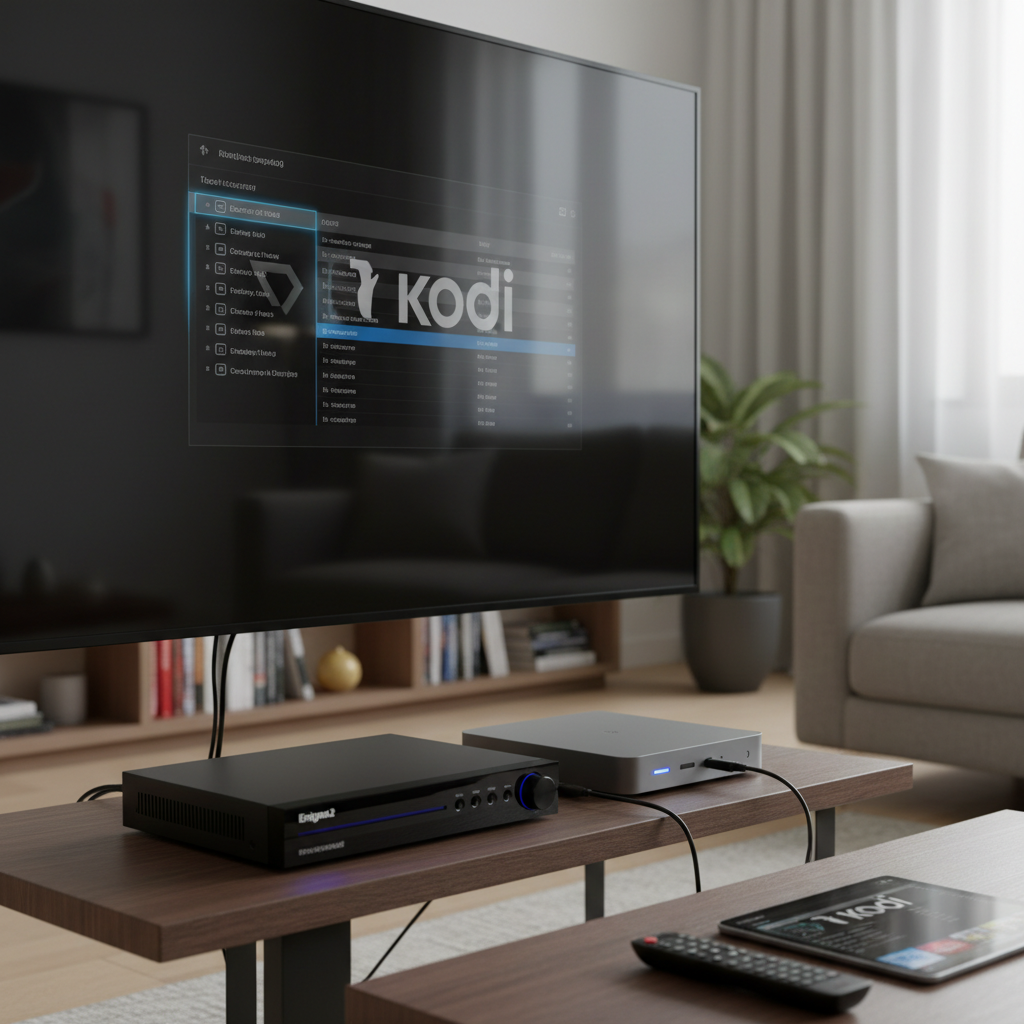
Digital Receiver (Enigma2) and Kodi: An Introduction
To begin, understanding the core components is crucial. An Enigma2 receiver is a Linux-based digital set-top box, typically used for receiving satellite, terrestrial, or cable television. These receivers are highly customizable due to their open-source firmware and often include a web interface (WebIf) for remote management and streaming. This WebIf is the key to its integration with Kodi.
Kodi, on the other hand, is a free and open-source media player software application. It functions as a digital media center, allowing users to play and view most streaming media, such as videos, music, podcasts, and videos from the internet, as well as all common digital media files from local and network storage media. Kodi’s strength lies in its extensive add-on ecosystem, including PVR (Personal Video Recorder) clients that enable it to connect to external tuners and receivers.
The synergy between these two platforms is compelling. By connecting your Enigma2 receiver to Kodi, you can transform any Kodi-enabled device (like a smart TV, computer, or streaming stick) into an extension of your Enigma2 box. This means enjoying live TV and your recorded shows throughout your home, all managed through Kodi’s user-friendly interface.
Prerequisites for Connecting Kodi and Enigma2
Before you dive into the setup process, ensure you have the following in place:
- Enigma2-based Set-Top Box: You need a functional Enigma2 receiver connected to your home network. It should be running a compatible web interface, with OpenWebIf being highly recommended for full functionality.
- Kodi Installation: Kodi must be installed on the device you intend to use for streaming (e.g., PC, laptop, Firestick, Android box).
- Network Connectivity: Both your Enigma2 receiver and the device running Kodi must be on the same local area network. A wired Ethernet connection is recommended for optimal streaming stability, especially for high-definition content.
- Enigma2 IP Address/Hostname: You’ll need to know the IP address or hostname of your Enigma2 receiver. This can usually be found in your receiver’s network settings or its “About” screen.
- Web Interface Credentials (Optional): If your Enigma2 receiver’s web interface is protected with a username and password, have these ready. The default credentials are often “root” for username and “dreambox” for password, but this can vary.
Step-by-Step Guide: Installing and Configuring the Enigma2 Client in Kodi
Connecting your Enigma2 receiver to Kodi is primarily done through the Enigma2 Client PVR add-on within Kodi. Follow these steps carefully:
Step 1: Install the Enigma2 Client Add-on in Kodi
|
Our Picks for the Best Digital receiver in 2026
As an Amazon Associate I earn from qualifying purchases.
|
||
| Num | Product | Action |
|---|---|---|
| 1 | Daakro AK45 Stereo Audio Amplifier,300W Home 2 Channel Wireless Bluetooth 5.0 Power Amplifier System, Home Amplifiers FM Radio, USB, SD Card, with Remote Control Home Theater Audio Stereo System |

|
| 2 | Sony STRDH190 2-ch Home Stereo Receiver with Phono Inputs & Bluetooth Black |
|
| 3 | Pyle Home Stereo Receiver with Bluetooth - 4 Channel Amplifier, 800 Watt Max, USB-A Input w MP3 Player, Easy Karaoke Setup with Mic Vol, Reverb and Delay, RCA in/Out, SD Card, FM Radio - PDA77BU |
|
| 4 | Denon AVR-X1700H 7.2 Channel AV Receiver - 80W/Channel, Advanced 8K HDMI Video w/eARC, Dolby Atmos, DTS:X, Built-in HEOS, Amazon Alexa Voice Control |
|
| 5 | Donner Stereo Audio Amplifier, 600W Peak 2 Channel Receiver with Bluetooth 5.3, Phono, Optical, Coaxial, USB, FM, 2 Mic-in, Aux, RCA Input for Home, Karaoke, Theater Speakers, MAMP2 |
|
| 6 | Pyle 200W Stereo Power Amplifier with Bluetooth - Dual Channel Audio Receiver - LED Display - RCA - USB - SD - MIC IN - FM Radio - AUX Input - Perfect for Home & Computer Audio - PDA29BU.5 |
|
| 7 | Denon AVR-S570BT AV Receiver 5.2 Channel 8K Ultra HD Audio & Video, Stereo Receivers, Denon AVR Wireless Streaming Bluetooth, (4) 8K HDMI Inputs, eARC, HD Setup Assistant |
|
| 8 | YAMAHA R-S202BL Stereo Receiver |
|
| 9 | Pyle 4-Channel Audio Amplifier with Bluetooth - Home Stereo Receiver w/ 500W Max Power - Commercial or Karaoke - Dual Mic Input with Echo, Vol, Talk-Over - AUX In - Sub Out - USB-A MP3 Player, AM/FM |
|
| 10 | Digital TV Converter Box, ATSC Tv Tuner - ZJBOX for Analog HDTV Live 1080P with Recording&Playback,HDMI Output, Timer Setting Tuner Function Digital Channel Free |
|
- Launch Kodi on your preferred device.
- Navigate to the Settings menu. This is typically represented by a gear icon.
- Select Add-ons.
- Choose Install from repository.
- Scroll down and select PVR clients.
- Locate and select the Enigma2 Client add-on from the list.
- Click Install. Kodi will download and install the add-on. You may see a notification in the top right corner once the installation is complete.
Step 2: Configure the Enigma2 Client
After installation, you need to configure the add-on to connect to your specific Enigma2 receiver.
- Once the installation is complete, navigate back to Add-ons > My add-ons > PVR Clients.
- Select the Enigma2 Client add-on again.
- Click on Configure.
- In the configuration window, you’ll see several tabs. Start with the General tab:
- Enigma2 hostname or IP address: Enter the IP address or hostname of your Enigma2 receiver here. This is the most critical setting.
- Review the Connection tab:
- Web interface port: The default is usually 80, but verify if your Enigma2 box uses a different port.
- Use secure HTTP (https): Enable this if your WebIf uses HTTPS.
- Username / Password: If your WebIf is password-protected, enter the credentials here. Common defaults are “root” / “dreambox”.
- Streaming port: The default is typically 8001, which usually works fine.
- Explore other tabs like Channels, EPG, Recordings, and Timers to customize preferences such as bouquet fetching modes, EPG genre mappings, and recording management. For most basic setups, the default settings after entering the IP address are sufficient, but these options offer granular control.
- Once you’ve entered the necessary details, click OK to save the configuration.
Step 3: Enable Live TV in Kodi
After configuring the Enigma2 Client, you need to enable the Live TV functionality within Kodi.
- Go back to Kodi’s main Settings menu.
- Select PVR & Live TV (or simply TV on older Kodi versions).
- Go to the General tab.
- Ensure that Enabled (for Live TV) is toggled on. If it was already on, Kodi might start scanning for channels automatically.
Step 4: Restart Kodi (if necessary)
In some cases, Kodi may require a restart for all changes to take full effect and for the channels and EPG data to populate correctly. Simply close Kodi and reopen it.
Once configured, you should find a “TV” or “Live TV” section on Kodi’s main menu, allowing you to access channels, the EPG, and recordings from your Enigma2 receiver.
Optimizing Your Kodi-Enigma2 Experience
To get the most out of your integrated setup, consider these optimization tips:
- Network Stability: For uninterrupted streaming, especially of high-definition content, a stable network connection is paramount. Wherever possible, use a wired Ethernet connection for both your Enigma2 receiver and your Kodi device. If Wi-Fi is necessary, ensure you have a strong, reliable signal.
- Enigma2 Firmware: Ensure your Enigma2 receiver is running the latest stable firmware, ideally with OpenWebIf version 1.3.5 or higher, to unlock all features of the Kodi Enigma2 Client, such as embedded EPG genres, tuner details, and provider names.
- EPG and Picons: In the Enigma2 Client add-on settings, under the General and EPG tabs, you can configure options to fetch picons (channel logos) and enable detailed EPG data, including season, episode, and year information where available. This greatly enhances the visual experience within Kodi.
- Troubleshooting Common Issues:
- Connection Errors: Double-check the IP address, port, username, and password entered in the add-on configuration. Ensure your Enigma2 box is powered on and accessible on the network.
- Channels Not Loading/Playback Issues: Verify that the “Live TV” feature is enabled in Kodi’s settings. For older Enigma2 devices or specific file types (like .ts recordings), you might need to adjust streaming settings or consider external media players on the Enigma2 side. Network congestion can also cause buffering.
- Missing EPG Data: Ensure the EPG fetching options are correctly set in the add-on configuration. Clearing Kodi’s EPG cache (Settings > PVR & Live TV > Guide > Clear cache) can often resolve display issues after making changes.
Conclusion
Integrating Kodi with your Enigma2 receiver opens up a world of possibilities for managing and enjoying your television content across various devices. By following this guide, you can successfully install and configure the Enigma2 Client add-on, transforming Kodi into a powerful frontend for your digital receiver. This synergy provides a flexible, feature-rich viewing experience, bringing together the best of both platforms. Experiment with the various settings to tailor the experience to your exact needs and enjoy your favorite channels and recordings like never before.
What aspects of your Enigma2 and Kodi setup are you most excited to explore first?
Frequently Asked Questions
What is the primary benefit of connecting Kodi to an Enigma2 receiver?
The main benefit is the ability to stream live TV channels, recorded programs, and EPG data from your Enigma2 receiver to any device running Kodi. This allows you to watch your satellite, terrestrial, or cable content on multiple screens throughout your home, using Kodi’s versatile media center interface.
Do I need to install Kodi directly on my Enigma2 receiver?
No, typically you install Kodi on a separate device (like a PC, Firestick, or Android box) and then use the Enigma2 Client add-on within Kodi to connect to your Enigma2 receiver over your network. While some high-end Enigma2 receivers may support direct Kodi installation, it’s not the primary or most common method.
What is OpenWebIf and why is it important?
OpenWebIf is a web interface for Enigma2 receivers that allows for remote control, streaming, and management. It’s important because the Kodi Enigma2 Client add-on leverages OpenWebIf’s APIs for full functionality, including advanced features like autotimers, detailed EPG genres, and better tuner support.
My channels aren’t loading in Kodi after setup. What should I check?
First, ensure your Enigma2 receiver is powered on and its IP address/hostname is correctly entered in the Kodi Enigma2 Client add-on settings. Verify that “Live TV” is enabled in Kodi’s main PVR & Live TV settings. Finally, check your network connection for both devices to ensure they can communicate.
Can I record programs from Kodi through my Enigma2 receiver?
Yes, the Enigma2 Client add-on supports creating and managing timers (for recording) directly from within Kodi. These timers are then executed by your Enigma2 receiver, allowing you to schedule recordings through Kodi’s interface.