Few things are as frustrating as settling in for a movie or your favorite show, only to find your remote control unresponsive. A non-functioning remote can bring your entertainment to a grinding halt, leaving you scrambling to manually operate your devices. Whether it’s a TV, sound system, streaming device, or universal remote, a remote control not working is a common nuisance. But before you toss it aside and buy a new one, understand that many remote issues can be resolved with simple, practical troubleshooting steps. This comprehensive guide will walk you through diagnosing the problem and applying effective solutions, empowering you to bring your remote back to life and reclaim control of your home entertainment.
Understanding Why Your Remote Control Stops Working
Remote controls, while seemingly simple devices, can cease to function for a variety of reasons. Knowing the potential culprits is the first step toward a successful fix. Often, the issue is not with the device you’re trying to control, but with the remote itself.
The most frequent cause of an unresponsive remote control is dead or weak batteries. As batteries age, their power output diminishes, leading to intermittent functionality or a complete failure to send signals. Incorrect battery orientation or corroded terminals within the battery compartment can also interrupt the power supply, preventing the remote from operating.
Another common problem arises from infrared (IR) signal obstruction. Most traditional remotes use infrared light to communicate with your devices, requiring a clear line of sight between the remote’s emitter and the device’s IR sensor. Obstacles like furniture, plants, or even interference from bright lights (like sunlight or certain energy-saving bulbs) can disrupt this signal, making the remote appear faulty.
Over time, stuck or dirty buttons can accumulate debris, grime, or even liquid spills underneath them. This accumulation can prevent a button from making proper contact with the circuit board, leading to unresponsiveness or constant signal transmission that blocks other commands.
For more modern or universal remotes, loss of pairing or syncing can be the cause. Smart remotes often use Bluetooth or Wi-Fi and need to be properly paired with their respective devices. If this connection is lost, the remote will stop working until it’s re-established. Lastly, physical damage from drops, impacts, or liquid exposure can cause internal components to break or short-circuit, leading to permanent malfunction. In rare cases, a faulty IR emitter on the remote or receiver on the device might be the underlying hardware issue.
Step-by-Step Troubleshooting: Simple Fixes First
When your remote control stops working, don’t panic. Start with these straightforward troubleshooting steps that often resolve the problem quickly and without needing any special tools.
1. Check and Replace Batteries
This is hands down the most common reason a remote fails. Before anything else, address the power source:
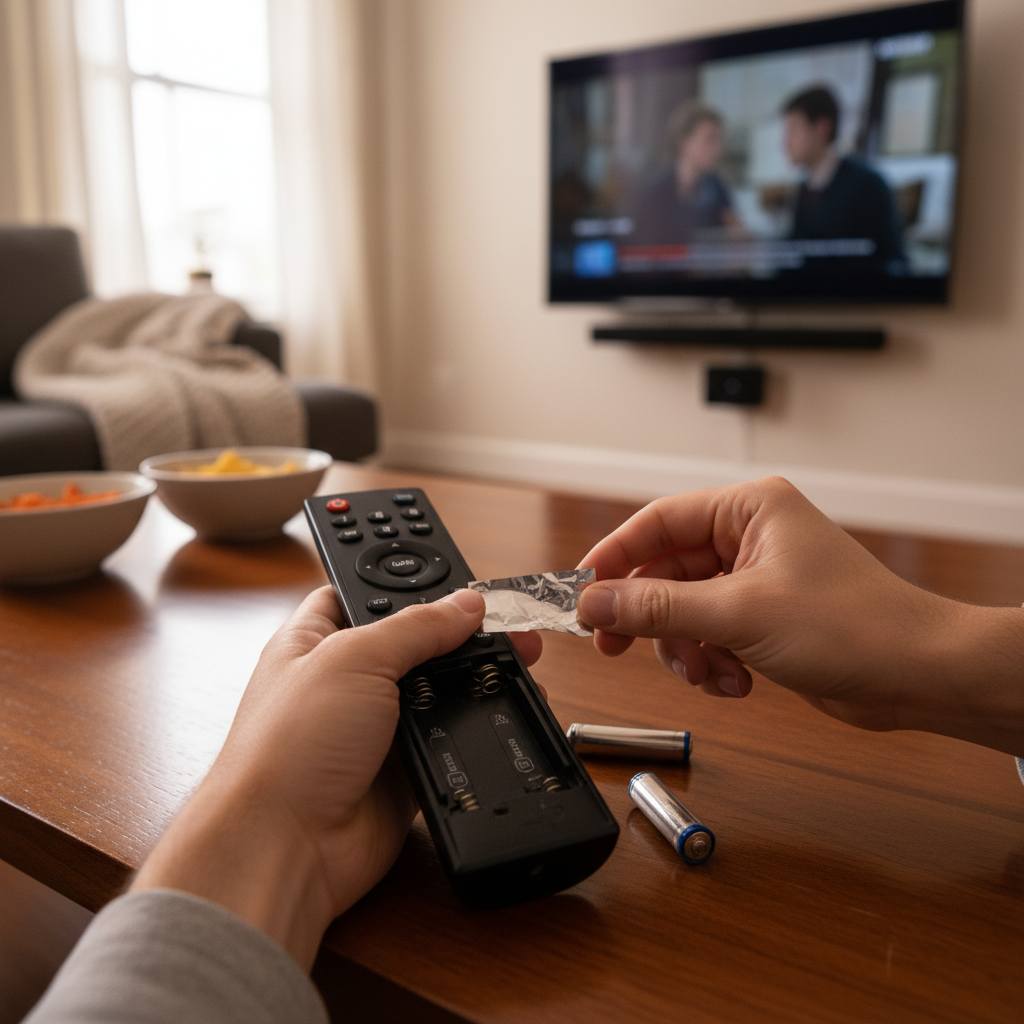
- Remove Old Batteries: Open the battery compartment on the back of your remote and take out the existing batteries.
- Inspect for Corrosion: While the batteries are out, examine the metal contacts inside the compartment. If you see any white, crusty, or green residue, this indicates corrosion. Gently clean it away using a cotton swab lightly dampened with isopropyl alcohol or a pencil eraser. Ensure the contacts are dry before proceeding.
- Insert Fresh Batteries: Replace the old batteries with a new set. It’s crucial to use new batteries and ensure they are inserted with the correct positive (+) and negative (-) polarity, aligning them with the markings inside the compartment. For optimal performance and to avoid uneven discharge, always replace all batteries at once, rather than mixing old and new.
|
Our Picks for the Best Digital receiver in 2026
As an Amazon Associate I earn from qualifying purchases.
|
||
| Num | Product | Action |
|---|---|---|
| 1 | Daakro AK45 Stereo Audio Amplifier,300W Home 2 Channel Wireless Bluetooth 5.0 Power Amplifier System, Home Amplifiers FM Radio, USB, SD Card, with Remote Control Home Theater Audio Stereo System |

|
| 2 | Pyle 200W Stereo Power Amplifier with Bluetooth - Dual Channel Audio Receiver - LED Display - RCA - USB - SD - MIC IN - FM Radio - AUX Input - Perfect for Home & Computer Audio - PDA29BU.5 |
|
| 3 | Pyle Home Stereo Receiver with Bluetooth - 4 Channel Amplifier, 800 Watt Max, USB-A Input w MP3 Player, Easy Karaoke Setup with Mic Vol, Reverb and Delay, RCA in/Out, SD Card, FM Radio - PDA77BU |
|
| 4 | Denon AVR-X1700H 7.2 Channel AV Receiver - 80W/Channel, Advanced 8K HDMI Video w/eARC, Dolby Atmos, DTS:X, Built-in HEOS, Amazon Alexa Voice Control |
|
| 5 | Sony STRDH190 2-ch Home Stereo Receiver with Phono Inputs & Bluetooth Black |
|
| 6 | YAMAHA R-S202BL Stereo Receiver |
|
| 7 | Denon AVR-S570BT AV Receiver 5.2 Channel 8K Ultra HD Audio & Video, Stereo Receivers, Denon AVR Wireless Streaming Bluetooth, (4) 8K HDMI Inputs, eARC, HD Setup Assistant |
|
| 8 | Digital TV Converter Box, ATSC Tv Tuner - ZJBOX for Analog HDTV Live 1080P with Recording&Playback,HDMI Output, Timer Setting Tuner Function Digital Channel Free |
|
| 9 | Donner Stereo Audio Amplifier, 600W Peak 2 Channel Receiver with Bluetooth 5.3, Phono, Optical, Coaxial, USB, FM, 2 Mic-in, Aux, RCA Input for Home, Karaoke, Theater Speakers, MAMP2 |
|
| 10 | Pyle 4-Channel Audio Amplifier with Bluetooth - Home Stereo Receiver w/ 500W Max Power - Commercial or Karaoke - Dual Mic Input with Echo, Vol, Talk-Over - AUX In - Sub Out - USB-A MP3 Player, AM/FM |
|
2. Clear Obstructions and Test Line of Sight
Infrared remotes need a clear path to the device they control. Any blockage can prevent the signal from reaching its destination:
- Remove Physical Obstacles: Ensure nothing is physically blocking the remote’s front tip or the IR sensor on your television or device. This includes decorative items, soundbars, or even curious pets.
- Check for Interference: Bright ambient light, especially direct sunlight or certain types of energy-efficient lighting (like fluorescent or some LED bulbs), can interfere with infrared signals. Try dimming lights or repositioning devices if you suspect light interference.
- Point Directly: Make sure you are pointing the remote directly at the device’s sensor. The range and angle of IR signals can vary, so ensure you have a clear, straight shot.
3. Test the Remote’s IR Signal with a Smartphone Camera
This clever trick helps determine if your remote is actually sending a signal, ruling out issues with your device’s receiver:
- Open Camera App: Launch the camera application on your smartphone or digital camera.
- Point and Press: Point the remote control’s IR emitter (the small, often clear or black bulb at the very front of the remote) towards your phone’s camera lens.
- Observe: While looking at your phone screen (not directly at the remote), press any button on the remote. If the remote is working and emitting an IR signal, you should see a quick flash of pinkish or white light on your phone screen. This light is invisible to the naked eye but visible to most digital cameras.
- Interpret Results:
- If you see a flash: Your remote is sending a signal, meaning the problem likely lies with your device (TV, receiver, etc.) or its IR receiver.
- If you don’t see a flash: The remote itself is not sending a signal, indicating an issue with the remote’s power, internal components, or buttons.
4. Perform a Soft Reset on the Remote
Sometimes, a remote simply needs a quick reset to clear any internal glitches:
- Remove Batteries: Take out all the batteries from the remote control.
- Discharge Residual Power: Press and hold the power button (or any prominent button) on the remote for 5 to 10 seconds. This helps drain any lingering electrical charge from the remote’s capacitors, completing a full reset.
- Reinsert Batteries: Put the batteries back into the remote.
- Address Stuck Buttons: If your remote was still not working after the previous steps, or if the IR test showed a continuous light (indicating a stuck button), try this: forcefully and repeatedly press every button on the remote several times. This can dislodge any tiny debris or unstick a button that might be preventing other commands from being registered.
Advanced Troubleshooting for Persistent Issues
If the initial simple fixes haven’t revived your remote, it’s time to delve into more advanced solutions. These steps might require a bit more effort but can often resolve more stubborn problems.
1. Re-pair or Re-sync the Remote
Many modern remotes, especially those for smart TVs, streaming devices (like Roku, Fire TV Stick), or universal remotes, use Bluetooth or Wi-Fi instead of traditional IR signals. These require pairing:
- Consult Your Device Manual: The exact pairing process varies significantly by manufacturer and device. Refer to your TV or device’s user manual for specific instructions on how to re-pair its remote.
- Common Pairing Methods:
- For Bluetooth Remotes: You might need to go into your TV’s or device’s settings menu (often under “Remotes & Accessories” or “Bluetooth Settings”) and select an option to “Add new device” or “Pair remote.” Simultaneously, you’ll typically press and hold specific buttons on the remote (e.g., “Home” and “Back” buttons together for 5-10 seconds) until a pairing indicator light flashes.
- For Universal Remotes: These often involve entering a “setup” mode, then a specific code for your device’s brand, or using an auto-search function. If it’s a universal remote that has stopped responding, it may have lost its programming.
- Ensure Proximity: Keep the remote close to the device during the pairing process.
2. Power Cycle the Device
Sometimes the issue isn’t with the remote at all, but with the device’s receiver. A power cycle can reset the internal components:
- Unplug the Device: Completely unplug your television, sound system, or streaming device from the wall outlet. Don’t just turn it off with the power button; physically remove the power cord.
- Wait: Leave it unplugged for at least 30 to 60 seconds. This allows all residual power to drain from the device.
- Plug Back In: Reconnect the power cord and turn on the device. Once it has fully booted up, try using your remote control again. This can often reset the IR receiver or Bluetooth module within the device itself.
3. Deep Clean the Remote Control
Accumulated grime and dust are notorious for causing unresponsive buttons. A thorough cleaning can work wonders, especially if only certain buttons are not working:
- Disassembly (Proceed with Caution): If you’re comfortable, carefully open the remote control casing. Many remotes have small screws hidden in the battery compartment or under stickers. Others may snap open. Before opening, take a picture of the button layout – some buttons (especially rubber ones) might fall out, and the photo will guide reassembly.
- Clean Internal Components: Use a dry, soft brush or cotton swab to remove visible dust and debris from the circuit board.
- Clean Contacts and Rubber Buttons: Lightly dampen a cotton swab or a microfiber cloth with isopropyl alcohol (rubbing alcohol). Gently wipe the contact pads on the circuit board and the underside of the rubber button membrane. Alcohol evaporates quickly and is safe for electronics. Avoid using excessive moisture.
- Clean Casing and Exterior Buttons: Wipe the remote’s exterior and individual hard plastic buttons with a slightly damp cloth (using a mild soap-and-water solution or alcohol). Use a toothpick or compressed air to clean around the edges of buttons.
- Dry Completely: Ensure all components are completely dry before reassembling the remote. This is crucial to prevent short circuits.
4. Software or Firmware Updates
For smart remotes or devices with companion apps, outdated software can sometimes lead to connectivity issues:
- Check Device Settings: Navigate to your smart TV’s, streaming stick’s, or other device’s settings menu. Look for options related to “System,” “About,” or “Software Update.”
- Update Firmware: Install any available updates for your device and its remote. These updates often include bug fixes and performance improvements that can resolve connectivity problems. This usually requires using your device’s on-screen menu, which might be challenging if your remote isn’t working at all. If possible, use an alternative control method (like a mobile app or a basic manual button on the device) to access these settings.
When to Consider a Replacement or Professional Help
You’ve tried everything, from fresh batteries to a deep clean, and your remote control is still not working. At this point, it’s time to evaluate whether a replacement or professional intervention is the next step.
If your smartphone camera test showed no IR signal being emitted, and you’ve already tried new batteries and a soft reset, the remote likely has an internal failure. This could be a broken circuit, a faulty IR emitter, or severe internal damage. Similarly, if your remote sustained significant physical damage, such as being dropped repeatedly, stepped on, or exposed to liquids, internal components may be irrecoverably damaged. In these cases, the cost and effort of repairing a remote often outweigh simply buying a new one.
Consider the following when deciding your next move:
- Cost of Replacement: Original manufacturer remotes can sometimes be expensive, but universal remotes or third-party replacements are often very affordable. Many streaming devices also offer free or low-cost mobile app alternatives that turn your smartphone into a remote.
- Device-Specific Remotes: For specialized remotes with unique features (e.g., voice control, motion sensing), finding a perfect universal replacement can be tricky. You might need to order an exact replacement from the manufacturer or a reputable electronics parts dealer.
- Professional Repair: Unless it’s a very high-end or rare remote, professional repair services for standard remote controls are uncommon and usually not cost-effective. Technicians are more likely to recommend replacing the unit. However, if the issue stems from the device’s IR receiver and not the remote itself, a professional technician might be needed to repair the device.
- Manufacturer Support: If your device and remote are still under warranty, contact the manufacturer’s customer support. They might offer troubleshooting assistance, a free replacement remote, or guidance on repairing the device’s receiver.
Don’t let a stubborn remote keep you from enjoying your favorite entertainment. While many issues can be fixed at home, recognizing when it’s time to move on to a replacement or professional help saves you time and further frustration.
Conclusion
A malfunctioning remote control can quickly turn a relaxing evening into a frustrating one. Fortunately, as we’ve explored, many instances of a remote control not working can be swiftly resolved with a logical, step-by-step approach. From the simple act of replacing batteries and ensuring a clear line of sight to performing a soft reset or even a thorough deep clean, the power to troubleshoot often lies in your hands. Modern remotes might require a quick re-pairing, and a device power cycle can sometimes work wonders for a stubborn receiver.
By systematically working through these troubleshooting tips, you’ll likely pinpoint the problem and get your remote back in action. Remember that patience is key, and tackling the simplest solutions first can save you both time and money. Don’t let a seemingly broken remote disrupt your digital experience – empower yourself with these fixes and reclaim seamless control over your entertainment setup. What’s the most unusual fix you’ve ever discovered for a remote control problem?
Frequently Asked Questions
Why do my remote control batteries die so quickly?
Fast battery drain can be due to several factors, including cheap batteries, a stuck button constantly sending a signal, or a faulty remote circuit drawing excessive power. Ensure all buttons are free and try a different brand of batteries.
Can I use my smartphone as a remote if my original stops working?
Yes, many modern smart TVs and streaming devices offer companion apps that can turn your smartphone into a fully functional remote control. Check your device’s app store for its official remote app.
How do I know if my remote control uses IR or Bluetooth?
IR remotes require a direct line of sight and often have a visible LED bulb at the front. Bluetooth remotes typically don’t need line of sight, often have longer range, and may feature a pairing button or process. The smartphone camera test is also a reliable way to check for IR signals.
Is it safe to open my remote control to clean it?
Opening your remote can be safe if done carefully, but it may void warranties. Use small screwdrivers and be gentle. Always remove batteries first, take a photo of the button layout, and use isopropyl alcohol for cleaning internal electronics, ensuring everything is dry before reassembly.
My new universal remote isn’t working, what should I do?
If a new universal remote isn’t working, ensure it’s correctly programmed for your specific device brand and model. Double-check the codes in the remote’s manual and confirm the device you want to control is turned on and ready to receive commands.